
TABLE OF CONTENTS
- Requesting a User Account
- Logging into Patient360
- Importing Files
- Notifications
- File History
- Revision History
Requesting a User Account
To request a user account for Patient360, email support@patient360.com. You must submit
The email address to be associated with your user account
Your first and last names
The Clinic/TIN/ACO to which you are requesting access
Once approved and configured, you will receive an email with instructions for completing your registration.
Logging into Patient360
To log into Patient360, follow the steps below.
Open a browser window and navigate to app.patient360.com

In the Email field, enter the email address used to request your Patient360 user account
In the Password field, enter the password you selected during Patient360 registration
Click the Sign in button to log into Patient360
Patient360 automatically selects the clinic and reporting year for your session. If you submit data for more than one clinic/TIN, you can change the clinic and reporting year for the session using the steps below.
Select the clinic name from the Clinic Name drop-down menu in the upper right

Select the reporting year from the Reporting Year drop-down menu in the upper right

Importing Files
Patient360 provides an import interface to accept and processes QRDA-I files in text-based .xml format or compressed .zip format.
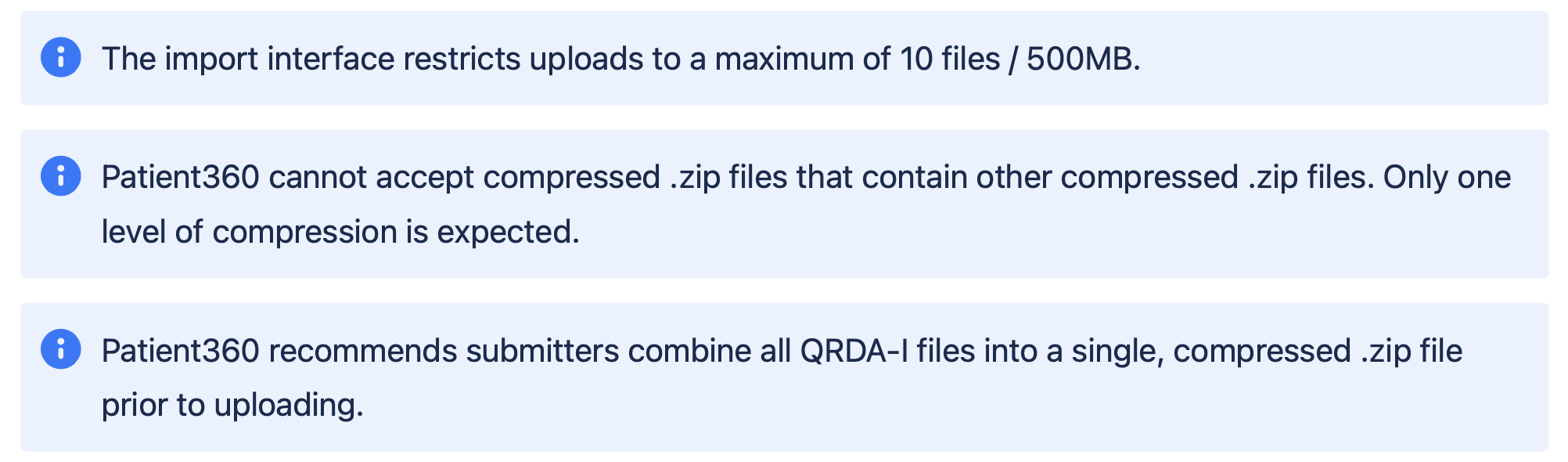
Patient360 recommends files be named using the following conventions with each component separated by underscores (_):
QRDAI20XX where the XX’s are replaced with the reporting period being submitted - e.g. QRDAI2024
Date formatted as YYYYMMDD, representing the date the file is created - e.g. 20240327
Time formatted as HHMMSS, representing the time the file is created - e.g. 100433
Additional information, as desired
Do not include other special characters or spaces in file names
For example, the following file names would be acceptable:
QRDA2024_20240327_100433.zip
QRDAI2024_20240327_100433_CMS165v12.zip
QRDAI2024_20240327_100422_CMS165v12_Smith.zip
Files can be imported using the steps below.
On the left side menu, select Imports → QRDA I → Import
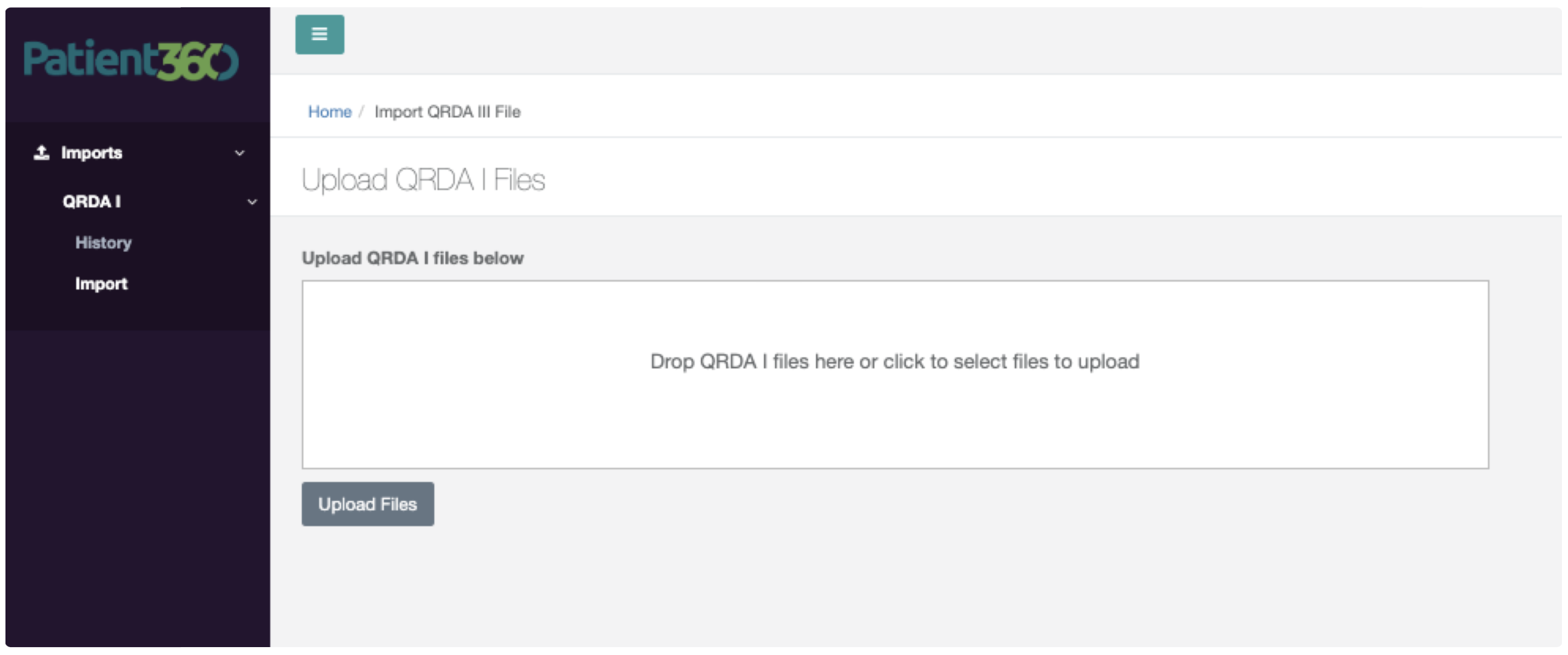
Drag & Drop files into the box or click in the box to browse for the file(s) to upload
Once all files are selected, click the Upload Files button
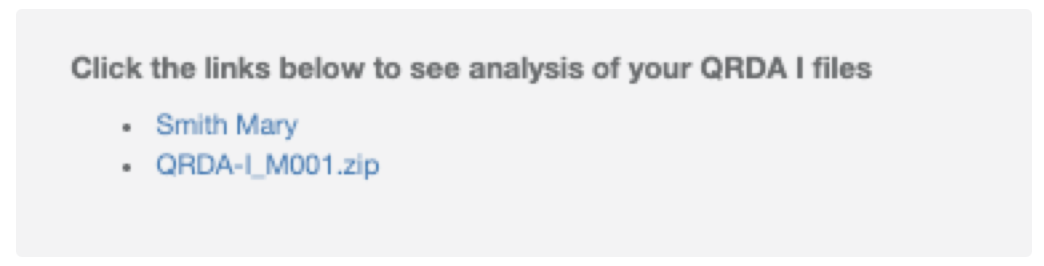
A summary of the uploaded files is displayed on the right side of the screen - see example below
Notifications
Upload Notification
An email, confirming the receipt of uploaded files will be sent to the user - see example below.
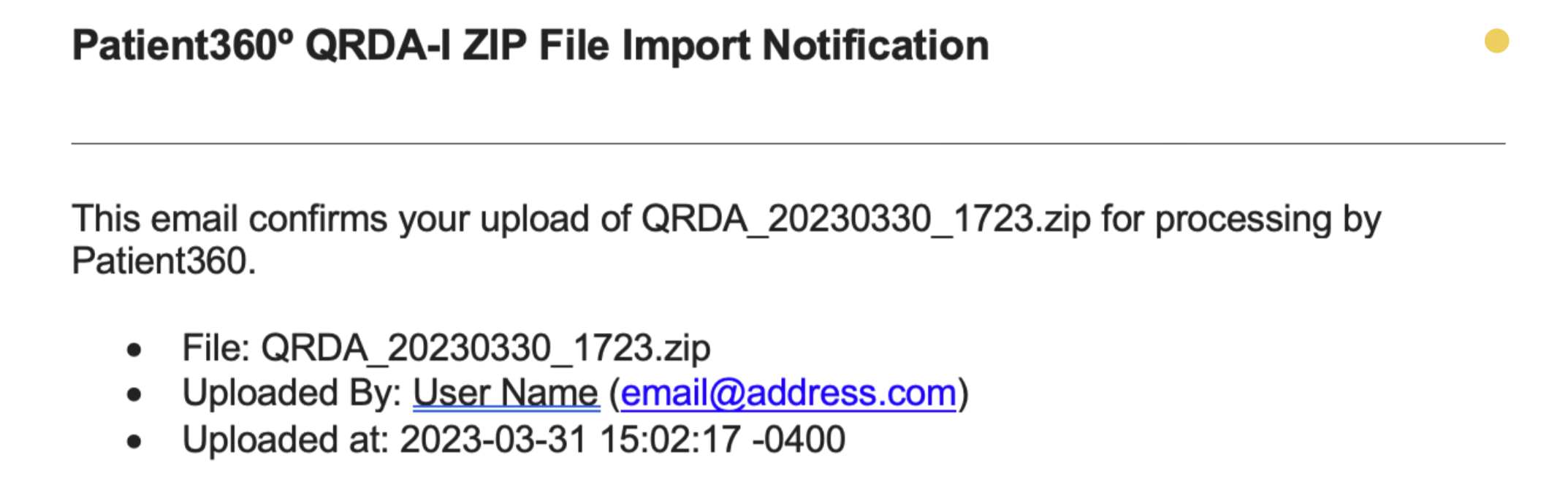
Import Notification
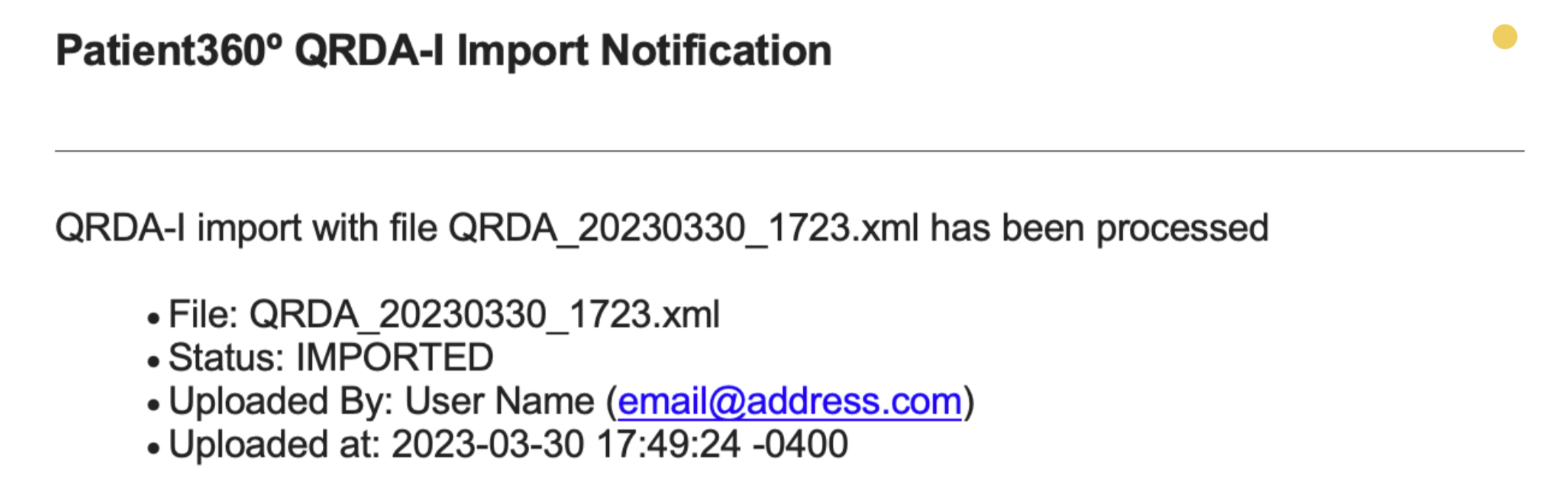
An email, confirming the import of the QRDA-I file(s) will be sent to the user - see example below.
Messages
The processed notification may include issues encountered during processing. The messages include the following:
Message | Description |
|---|---|
[NPI List] providers are not part of clinic | Indicates that one or more NPIs in the QRDA-I file(s) are not registered in Patient360 |
Measure number [x] is not allowed to process | Indicates the measure is not implemented in Patient360 for the reporting year |
Measure is not allowed for reporting year | Indicates a measure is not available for the reporting year |
File History
Patient360 allows users to review the files that have been uploaded. Files history can be accessed by selecting Imports → QRDA I → History on the left side menu.
Zip Files
The Zip Files tab displays a list of the compressed .zip files that have been uploaded to Patient360. The list includes the following fields:
Field | Description |
|---|---|
ID | Unique identifier assigned to file upload |
File Name | Name of file uploaded |
Source | Source of file - Web, FTP, etc. |
Status | Current status of the file in Patient360 |
Updated | When the upload was last updated |

XML Files
The XML Files tab displays a list of the text-based .xml QRDA-I files that have been uploaded to Patient360. The list includes the following fields:
Field | Description |
|---|---|
ID | Unique identifier assigned to file upload |
File Name | Name of file uploaded |
Source | Source of file - Web, Web ZIP File, etc. |
Status | Current status of the file in Patient360 |
Message | Information related to file import, if any |
Source File | Zip file from which XML file was extracted, if applicable |
Updated | When the upload was last updated |

Revision History
Date | Version | Changes |
|---|---|---|
2024-03-27 | 7 | Added naming convention and revision history |
2023-08-17 | 6 | |
2023-05-18 | 5 | |
2023-05-11 | 4 | |
2023-05-09 | 3 | |
2023-04-27 | 2 | |
2023-04-10 | 1 | Initial version |