NextGen QRDA I File Export
How to open a support case with NextGen:
Login to NextGen Success Community
Create a New Case
Select HQM as the Category
Fill in the following
Subject - QRDA I Assistance
Description - include a brief overview of the type of assistance you need
Topic - HQM Portal Issues/Measures
Priority - 2 - Urgent
Version - This should correspond with your current NextGen EHR Version #
Note: Support cases can be opened to request the QRDA Program in NextGen HQM and/or for assistance with configuring and exporting QRDA I Files
How to Generate and Export a QRDA I File
Login to NextGen HQM
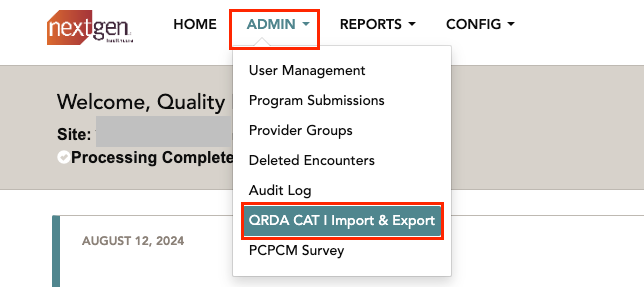
Click on Admin → QRDA CAT I Import & Export
Note: If you do not have this option under the Admin drop-down, follow the steps above to open a support case with NextGen
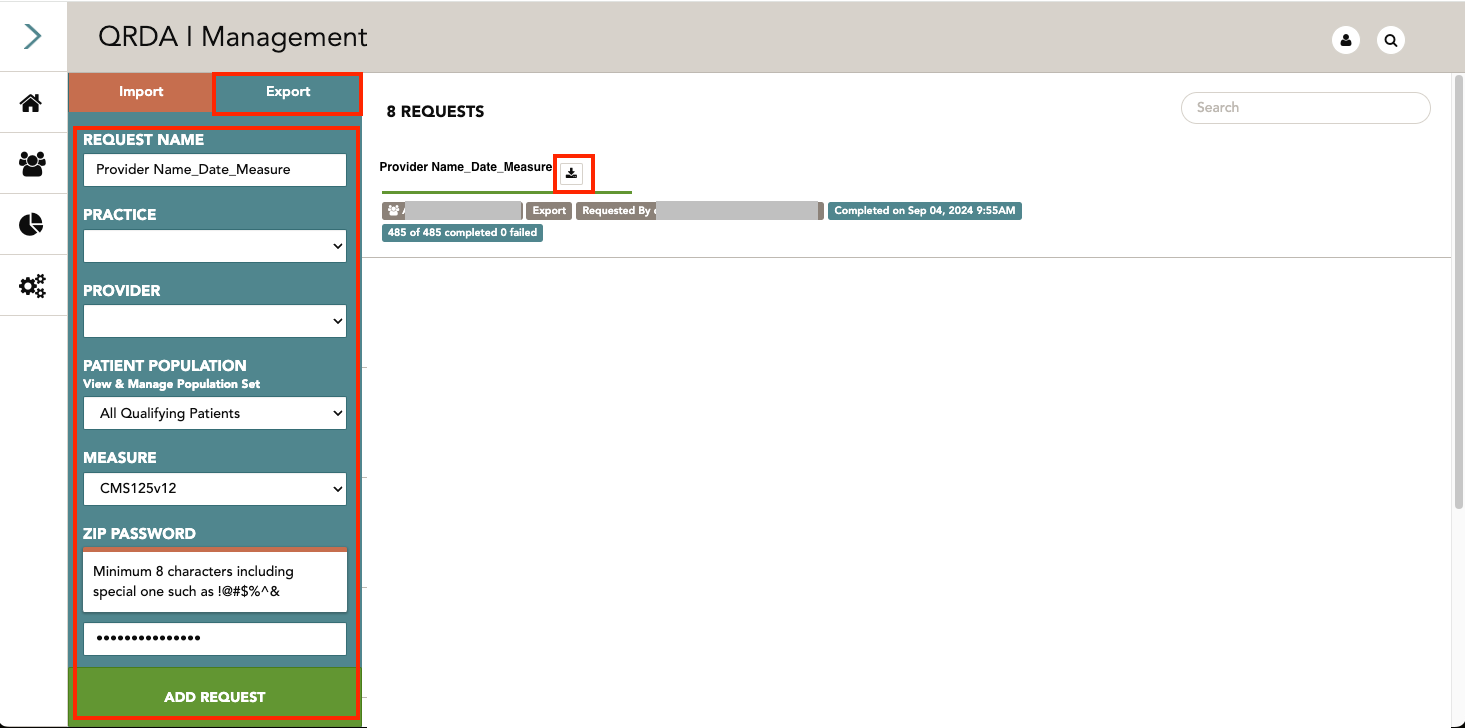
Click on Export
Fill in the following details
Request Name - this is what you want to call your QRDA I File
Practice
Provider - these reports must be run at the individual provider level
Patient Population
Measure - you have the option of running all configured eCQM measures or one eCQM measure at a time
Zip Password - create a password to unzip the files once they’ve been downloaded
Download
After downloading, unzip the file using the Zip Password you created and then re-zip the file without a password