TABLE OF CONTENTS
Signing the Consent Form
Before you can submit your 2025 MIPS Data at the Group and/or Individual level, you must complete the Patient360 Consent Form. See the steps below, for additional assistance please reach out via support@patient360.com.
Note: If you are not planning to submit data for the 2025 MIPS reporting year, please see the Not Submitting 2025 MIPS Data section
- Login to Patient360
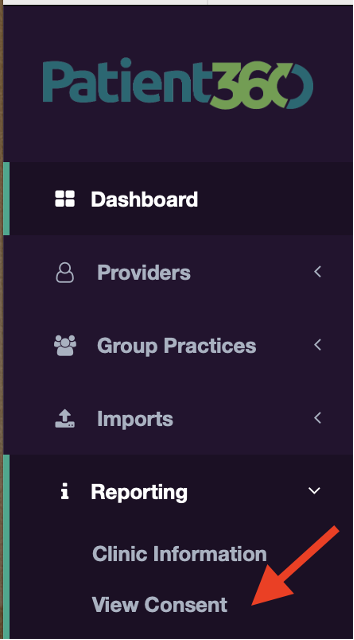
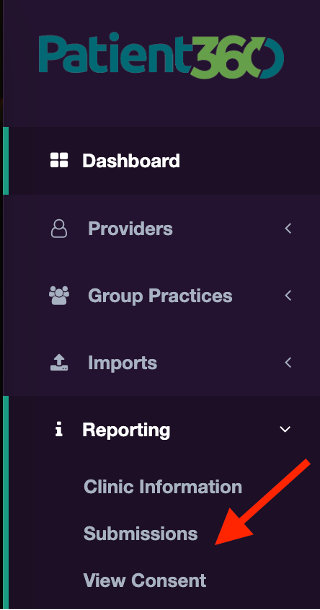
- Click on Reporting > View Consent
- Click on View next to the group and/or individual provider planning to report 2025 MIPS
Note: You can filter consent based on reporting type (ex: group or individual), or status (ex: consent is complete or incomplete)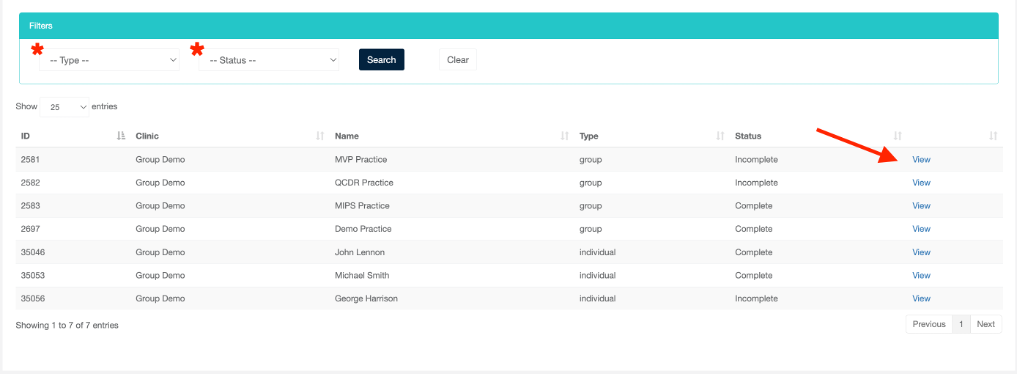
- For group reporting, click on eSign, or Print
a. eSign (strongly recommended): Type in your full name and click the Grant button. A copy of your group consent will be sent via email
b. Print: Print, sign, and send a copy of your signed consent to support@patient360.com - For individual reporting, click on eSign or Print
a. eSign (strongly recommended): An email address is required. This can be added from the Providers section of P360. After clicking eSign, an email will be sent with an invitation to complete consent
b. Print: Print, sign, and send a copy of your signed consent to support@patient360.com
Submitting 2025 MIPS Data
Please follow the steps below to indicate readiness to submit your 2025 MIPS Data to CMS at the Group and/or Individual level. Data submission must be completed by Saturday, February 28th. For additional assistance please reach out via support@patient360.com.
- Login to Patient360
- Click on Reporting > Submission
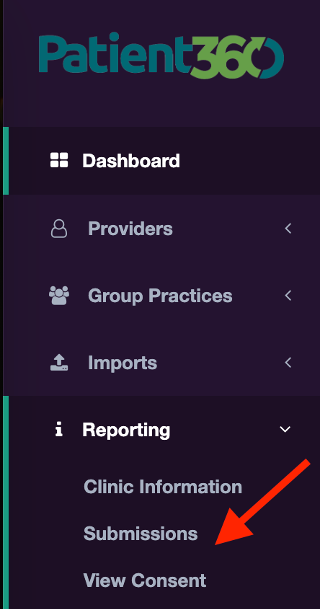
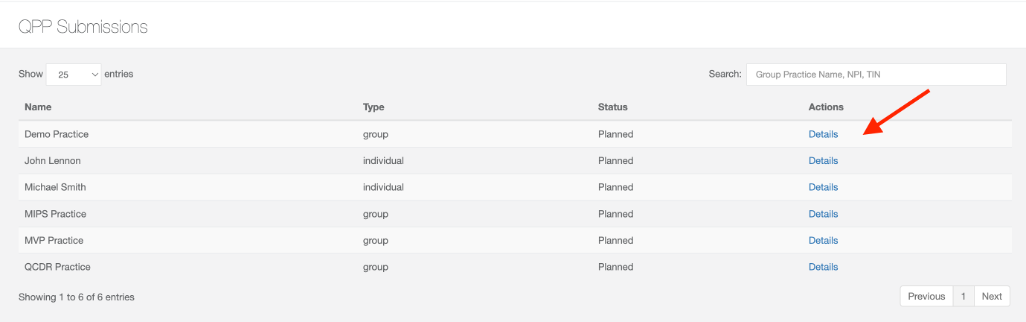
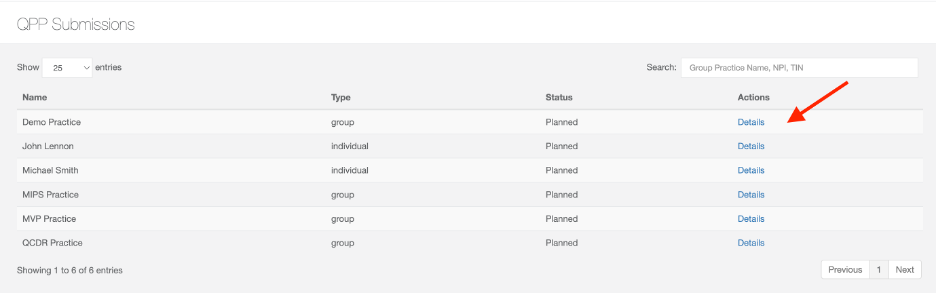
- Click on Details next to the group and/or individual provider planning to report 2025 MIPS
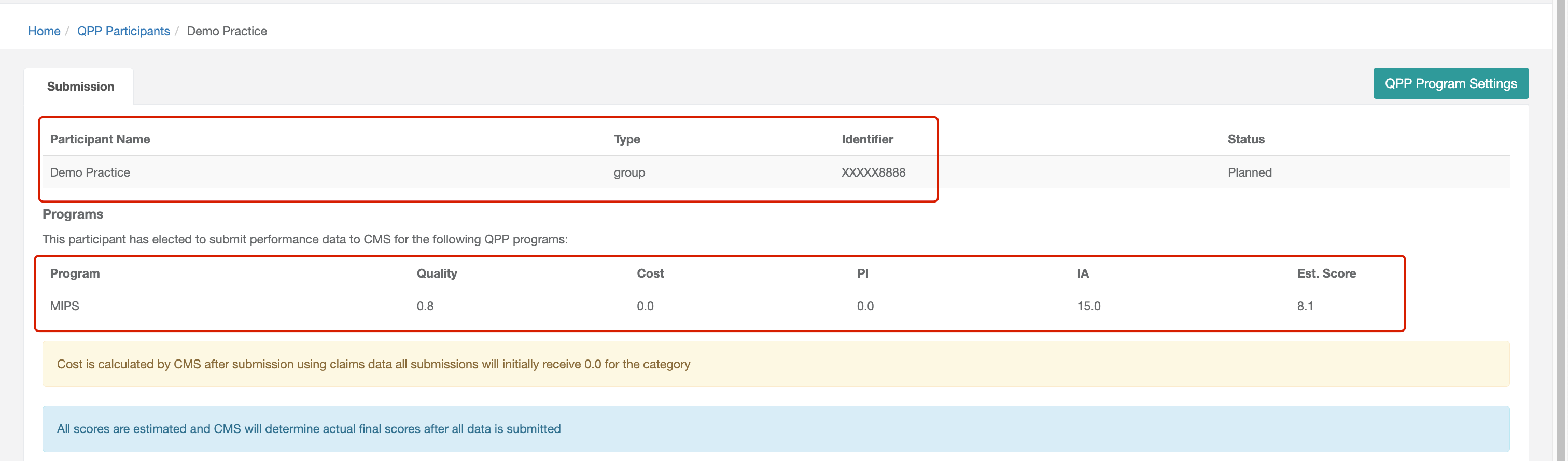
- Verify the following information is displayed correctly: participant name, type, and identifier. Program participation and estimated scores
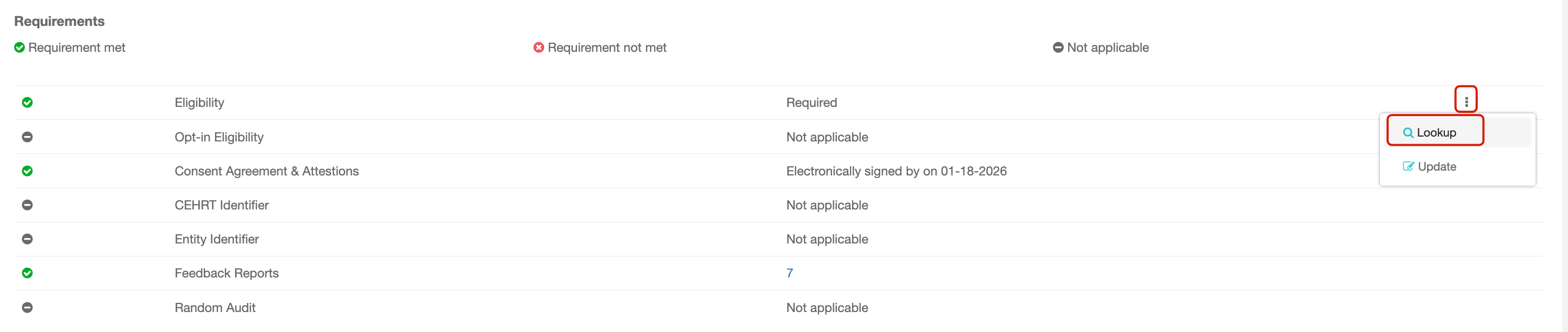
- Eligibility Requirement
Patient360 uses the CMS NPI lookup tool to determine the eligibility of each participant; However, participants must verify their "final eligibility" before indicating their submission decision.
Verify the participant's eligibility for QPP is displayed correctly. For individual participants, click
on the ellipsis icon, then Lookup
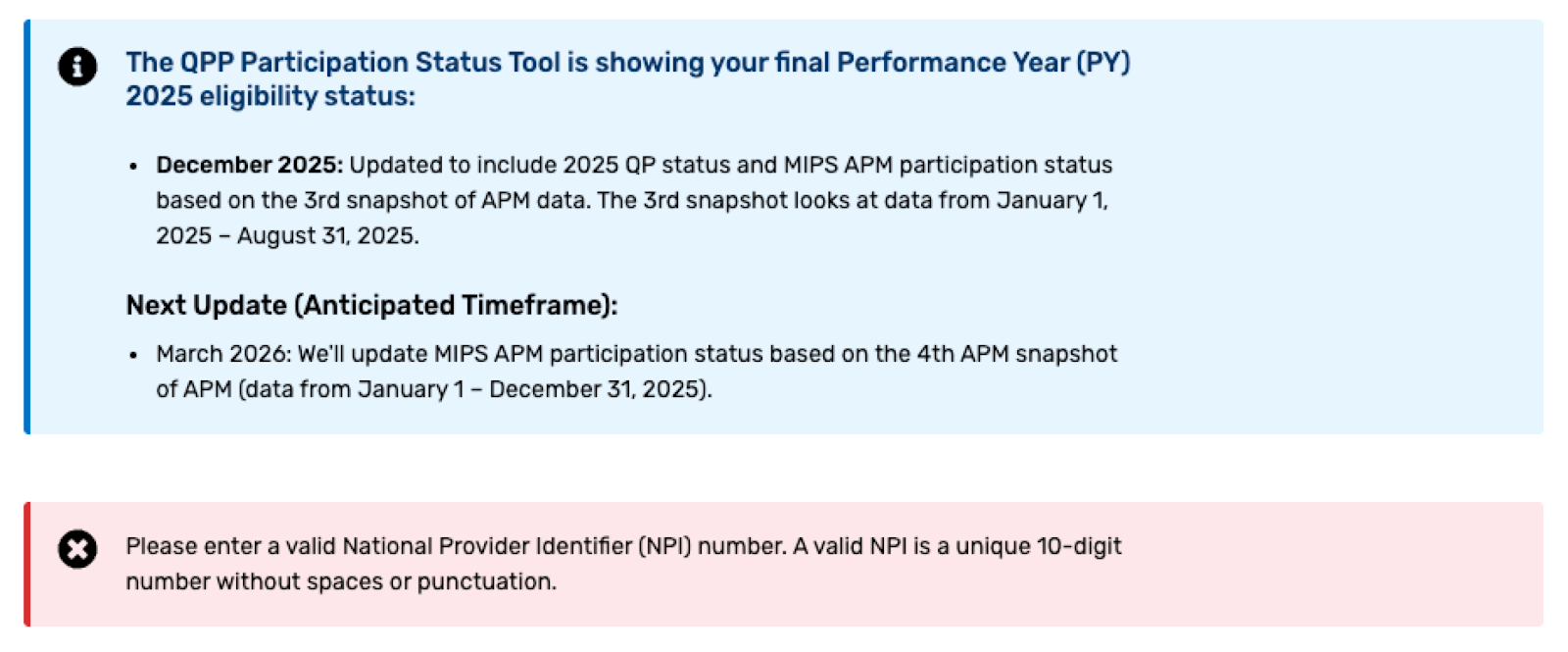
This will take you to QPP NPI look up tool. Verify the NPI and performance period are correct.
Review the 2025 Participation Status for the NPI-TIN that is reporting through Patient360.
Use the table below to interpret the QPP look up tool icons and eligibility determinations.
| QPP Look Up Tool Icon | Eligibility Determination |
| MIPS Eligibility for the individual shows a green check mark for the NPI-TIN combination | Required |
MIPS Eligibility for the individual shows in black for the NPI-TIN combination | Not Required |
| MIPS Eligibility for the individual shows no eligibility determination and/or indicates the NPI is invalid | Ineligible |


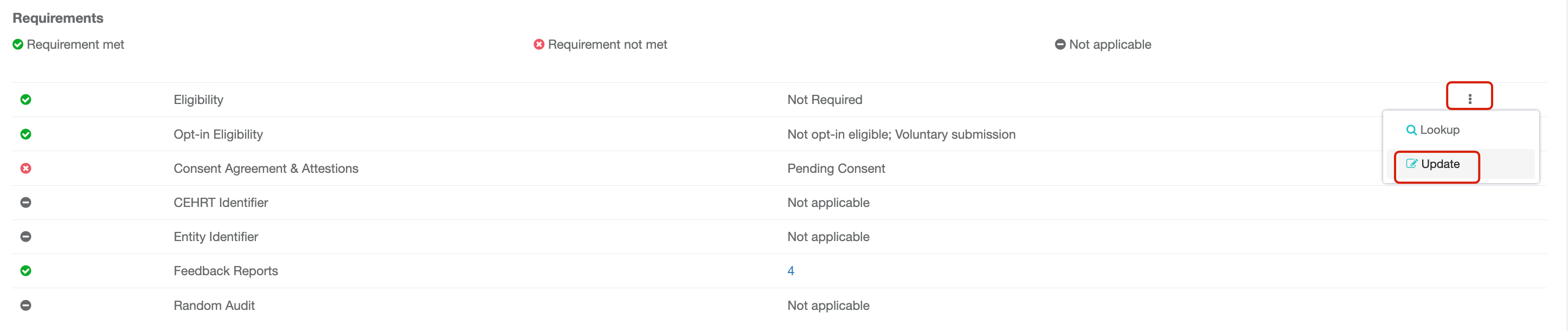
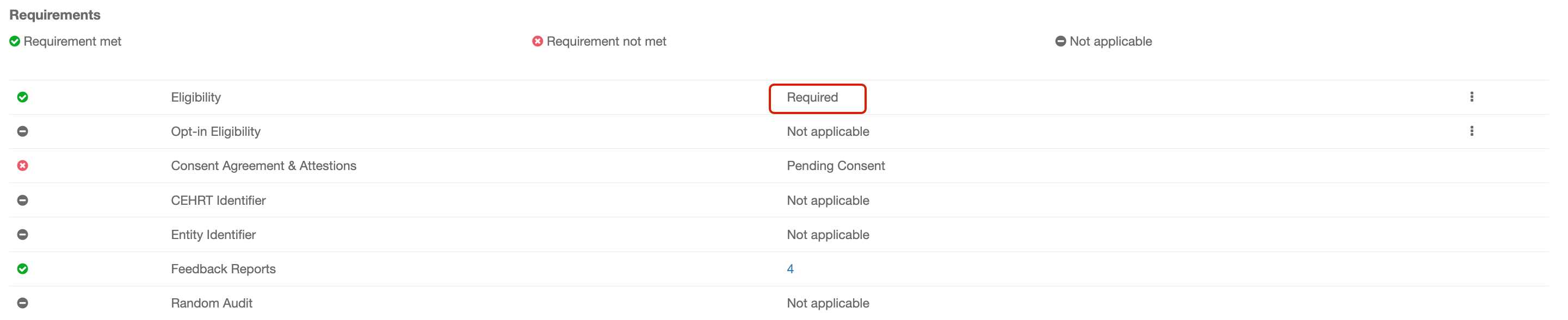
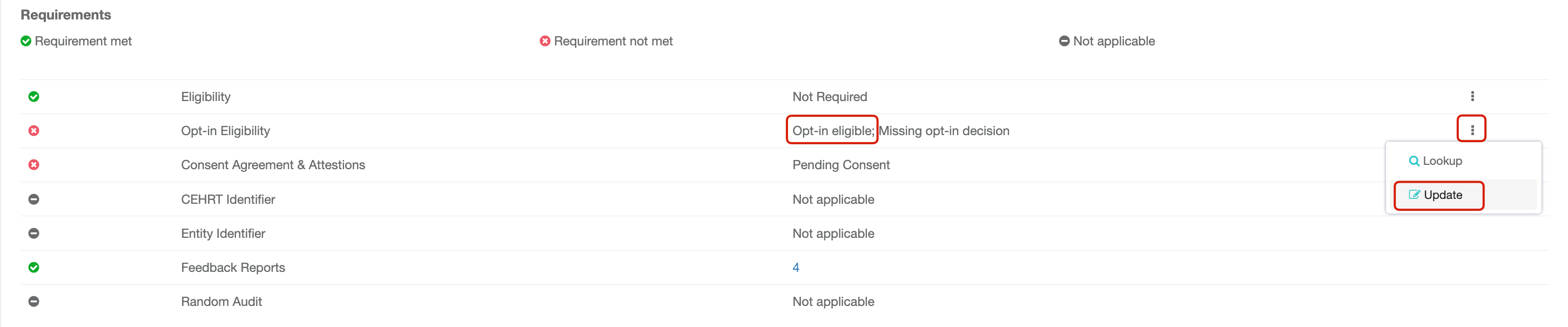
Navigate back to Patient360, to verify that the Eligibility status matches the QPP look up tool. If the status does not match, click on the ellipsis icon, then "Update" to modify the eligibility determination for the participant.
For example, if the eligibility on the QPP look up tool indicates that you're required to report then you'll want to click "Update" to change the eligibility reflected in Patient360.
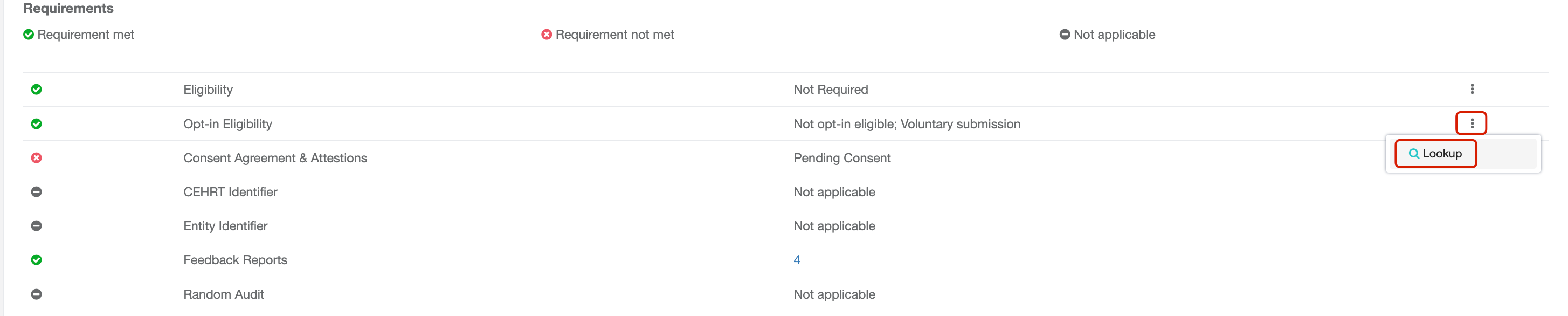
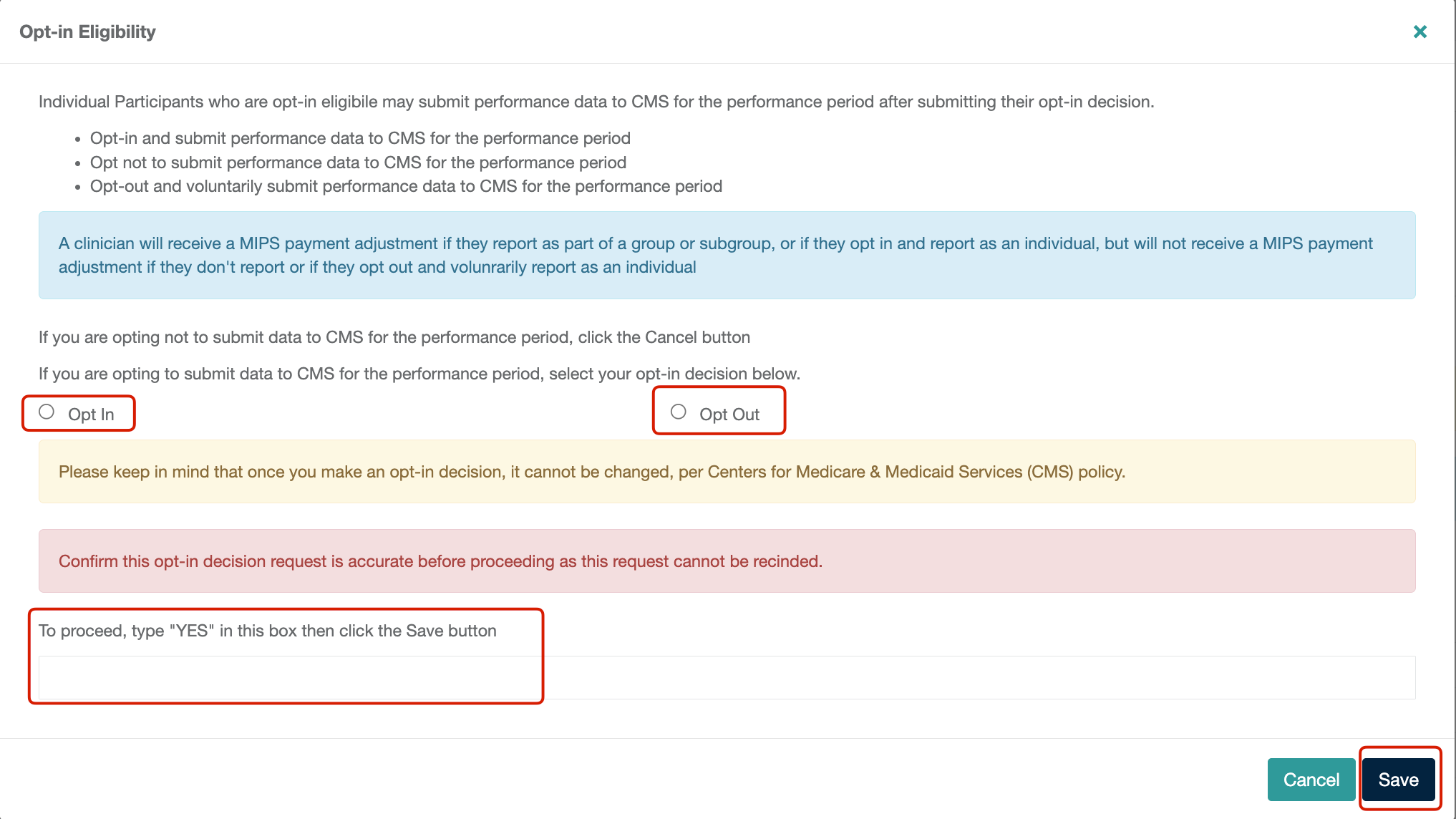
If the eligibility on the QPP look up tool indicates that you're Not Required, you'll want to click on the ellipsis icon, then "Lookup".
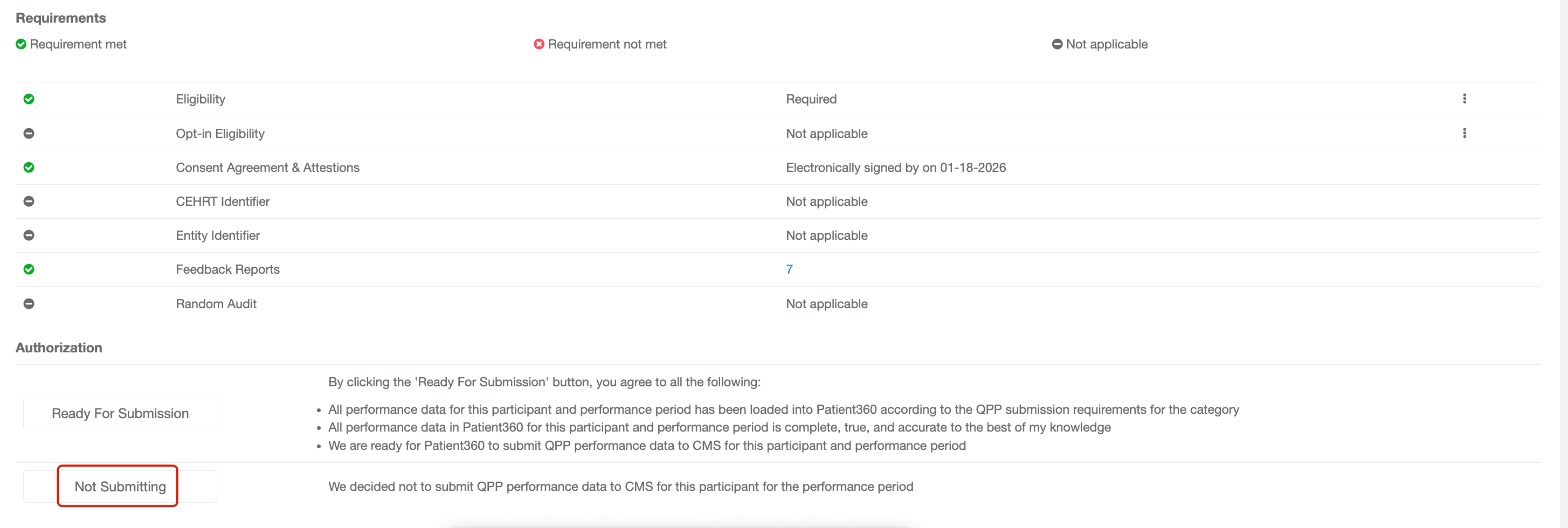
6. Click Ready For Submission
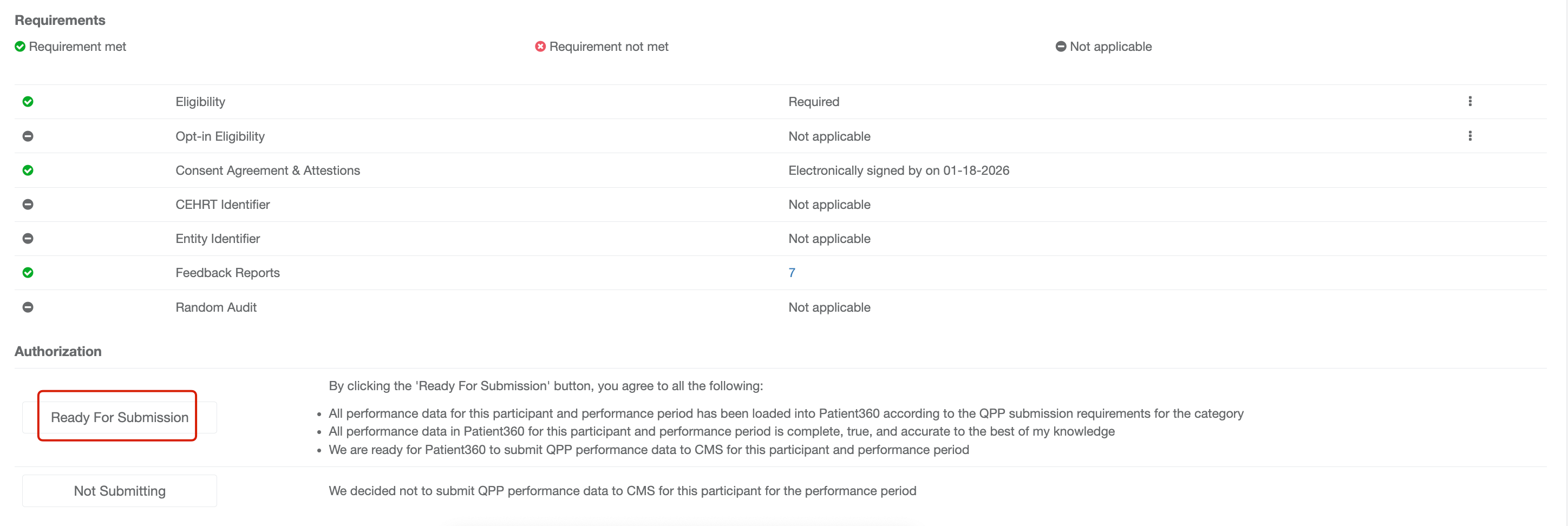
Note: You will receive a submission receipt that CMS has accepted your 2025 MIPS data within 24-48 hours of indicating your submission readiness in Patient360.
Not Submitting 2025 MIPS Data
Please follow the steps below to indicate that your group and/or individual will not submit 2025 MIPS Data to CMS. For additional assistance please reach out via support@patient360.com.
- Login to Patient360
- Click on Reporting > Submission
- Click on Details next to the group and/or individual provider that was planning to report 2025 MIPS
- Eligibility Requirement
Patient360 uses the CMS NPI lookup tool to determine the eligibility of each participant; However, participants must verify their "final eligibility" before indicating their submission decision.
Verify the participant's eligibility for QPP is displayed correctly. For individual participants, click
on the ellipsis icon, then Lookup
This will take you to QPP NPI look up tool. Verify the NPI and performance period are correct.
Review the 2025 Participation Status for the NPI-TIN that is reporting through Patient360.
Use the table below to interpret the QPP look up tool icons and eligibility determinations.
| QPP Look Up Tool Icon | Eligibility Determination |
| MIPS Eligibility for the individual shows a green check mark for the NPI-TIN combination | Required |
MIPS Eligibility for the individual shows in black for the NPI-TIN combination | Not Required |
| MIPS Eligibility for the individual shows no eligibility determination and/or indicates the NPI is invalid | Ineligible |
Navigate back to Patient360, to verify that the Eligibility status matches the QPP look up tool. If the status does not match, click on the ellipsis icon, then "Update" to modify the eligibility determination for the participant.
For example, if the eligibility on the QPP look up tool indicates that you're required to report then you'll want to click "Update" to change the eligibility reflected in Patient360.
5. Click Not Submitting