TABLE OF CONTENTS
Overview
The goal of this article is to provide details on the tools available in the Patient360 ACO Admin Panel. These tools include the Dashboard, Users, Clinics, Member Status, MCQM Analysis, and Import Failures.
To get to ACO Admin Panel, click on your name in the top right corner of Patient360 and select "ACO Admin".

Dashboard
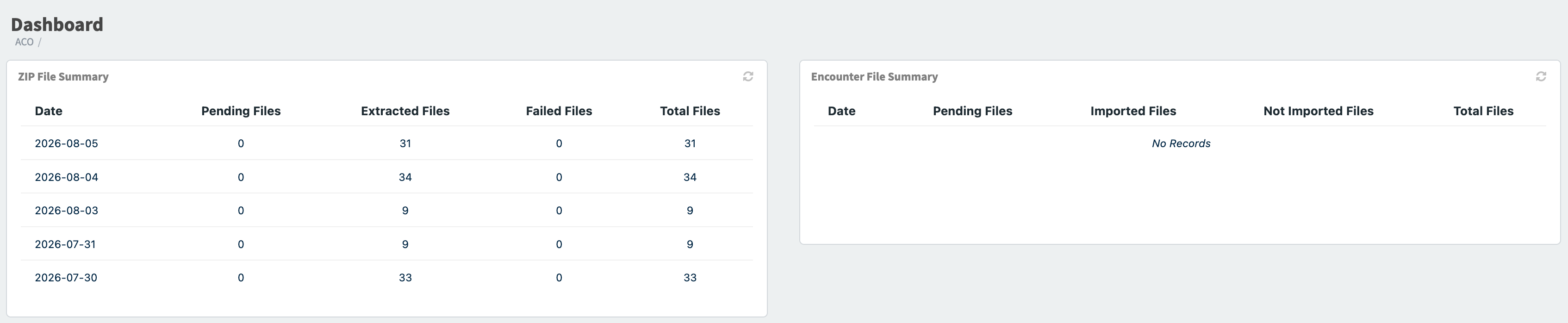
The Dashboard shows a Zip File Summary and Encounter File Summary from the last 5 days.
Directories
Users
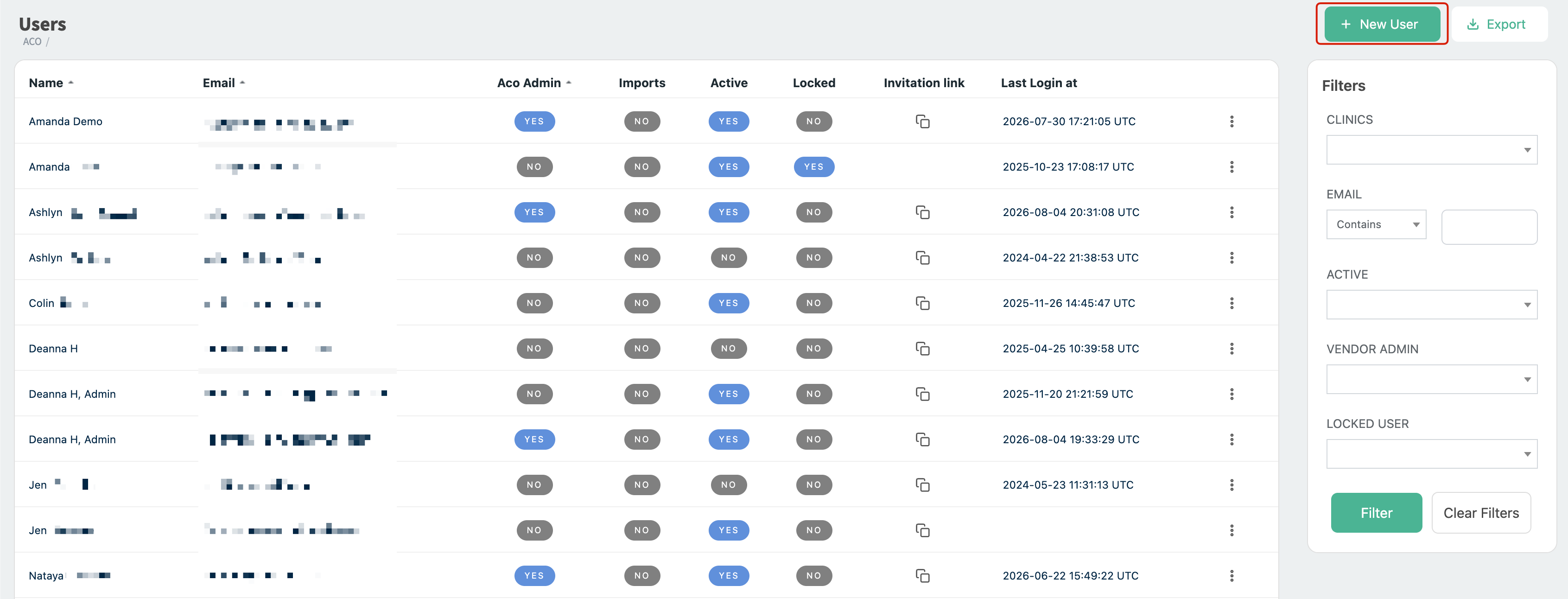
This is where you can see and manage all ACO Admins and member clinic users.

Adding Users
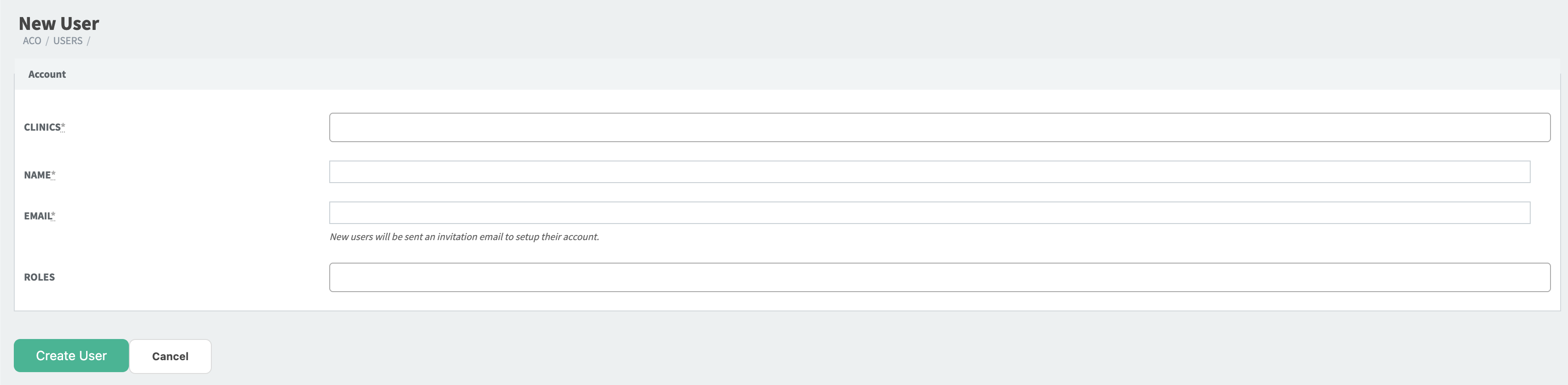
Click on "New User" and fill out Clinics, Name, Email and Roles
- "User" - The user will have full access to the Clinics they are assigned to. Users can be assigned to more than one Clinic.
- "Imports only" - The user will only have access import data via drag and drop. This user will see a history of uploads and import failures but will not see any performance data.
- "Aco admin" - The user will have full access to ALL Clinics in the ACO and the ACO Clinic which is a roll up and deduplication of all member TIN data.
Resend P360 Invitation Link
Click on the vertical ellipsis, then "View" "Resend Invitation"
- Note - The invitation email will come from no-reply@patient360.com and is valid for 7 days


Clinics
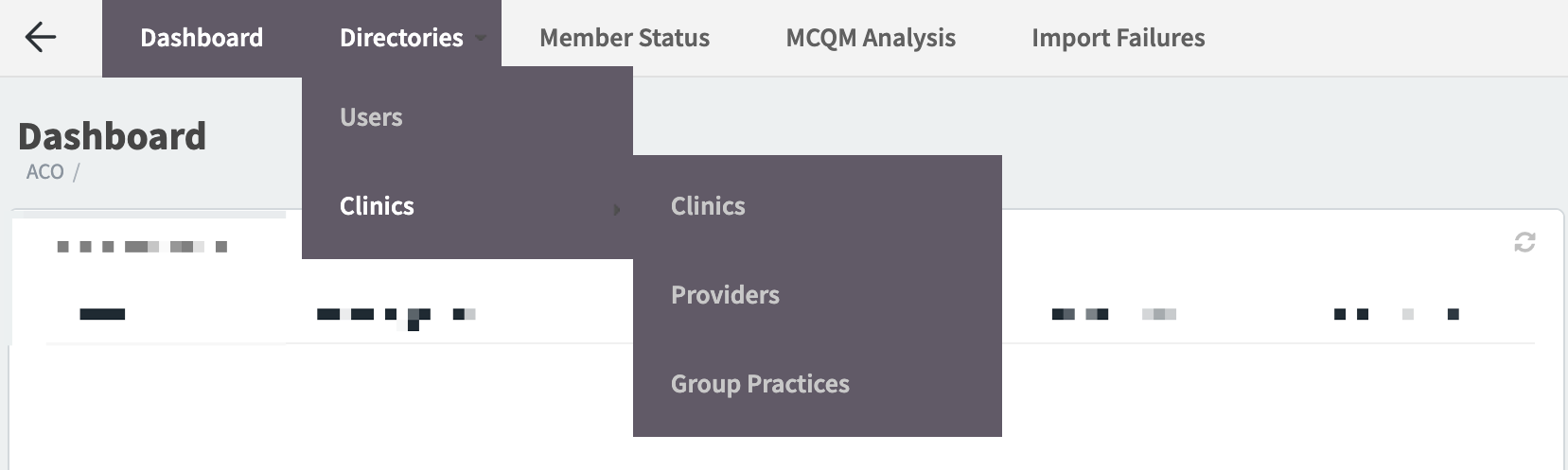
From Directories --> Clinics, you'll have access to Clinics, Providers, and Group Practices
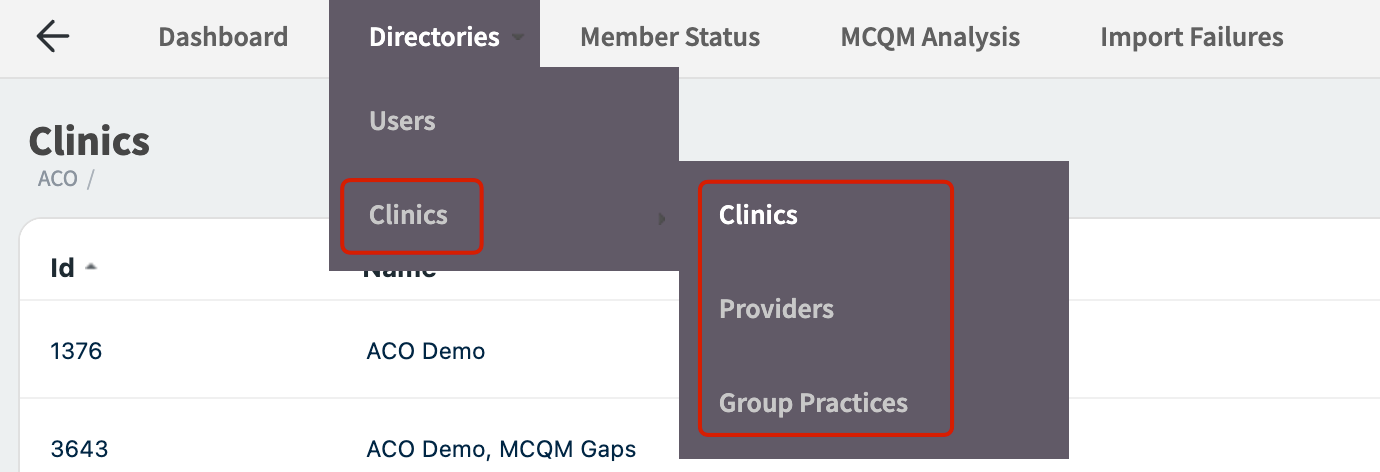
Clinics
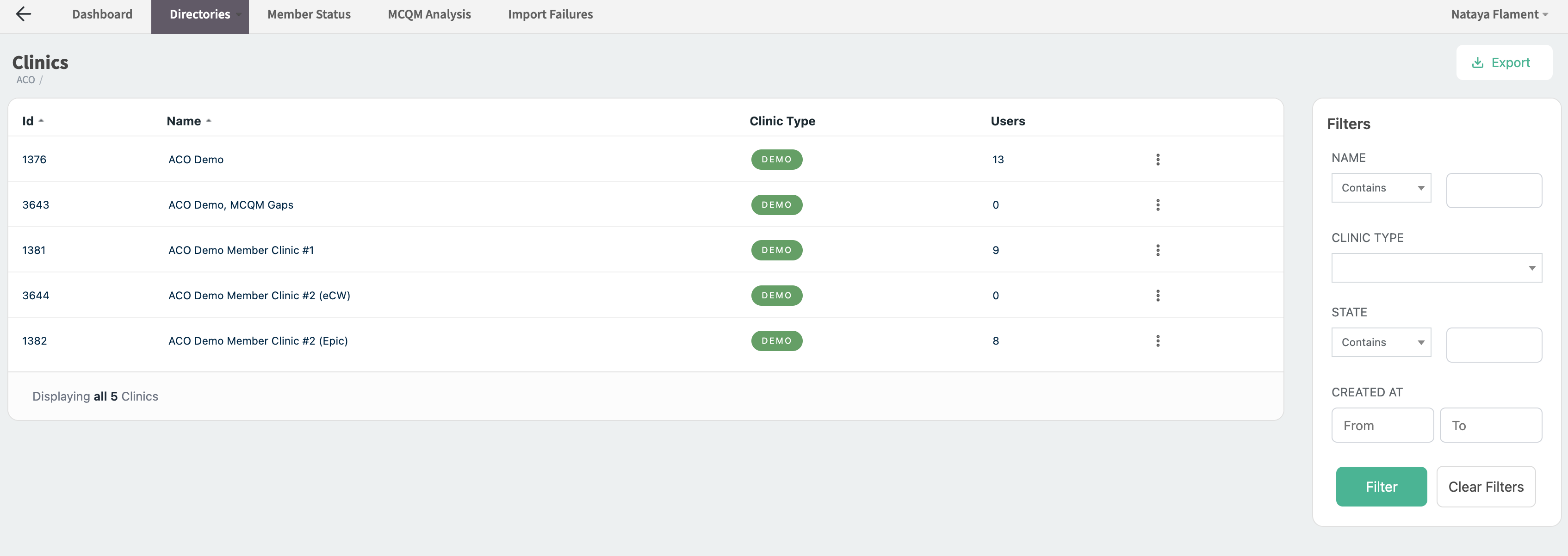
Shows a list of all member clinics and the number of users assigned to each clinic.
Note - this list can be exported as a csv using the "Export" button in the top right corner
Providers
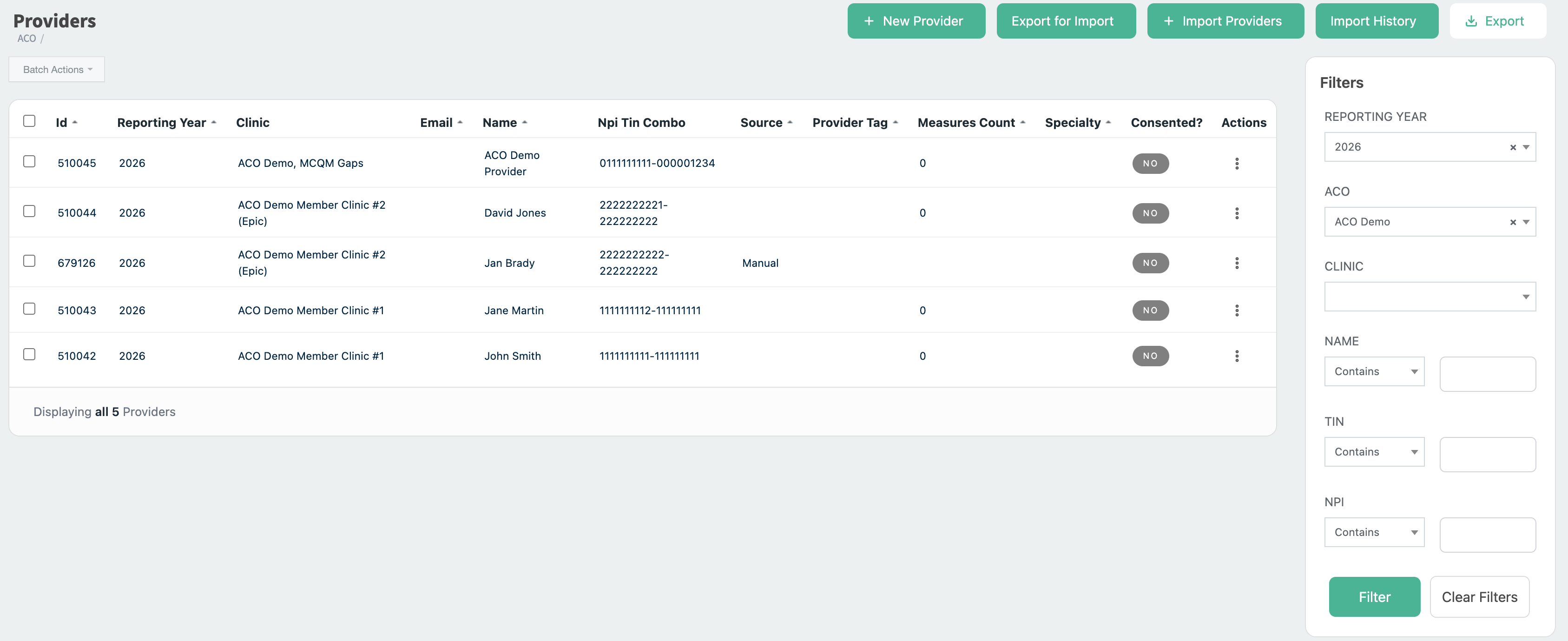
Under Providers, you'll have the ability to view all providers, import providers, and export providers.
Import Providers Manually
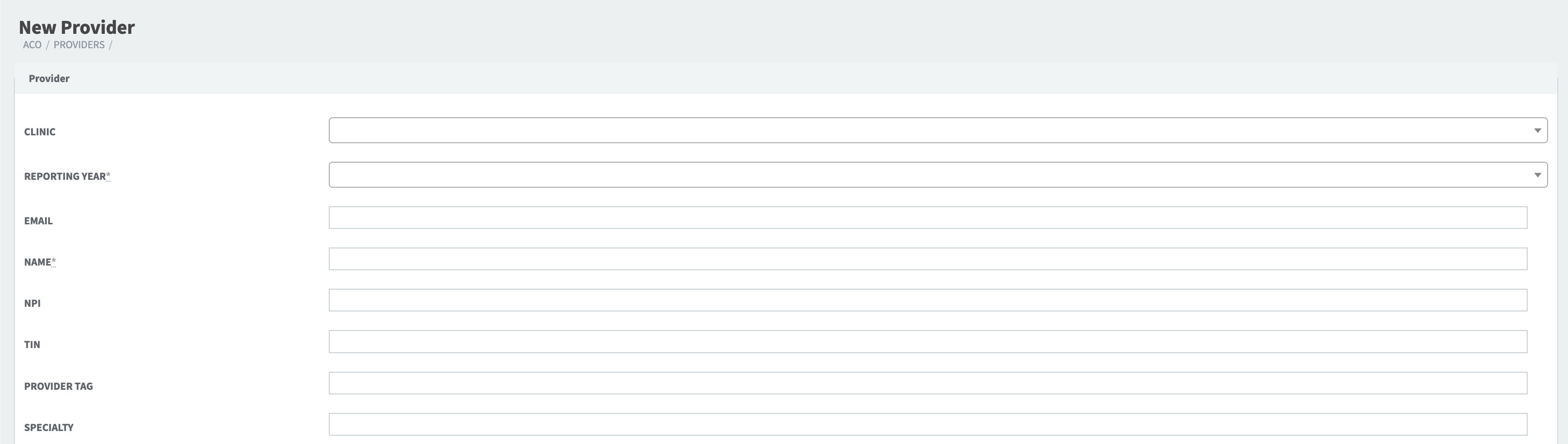
Select "New Provider"

Import Providers via Excel File
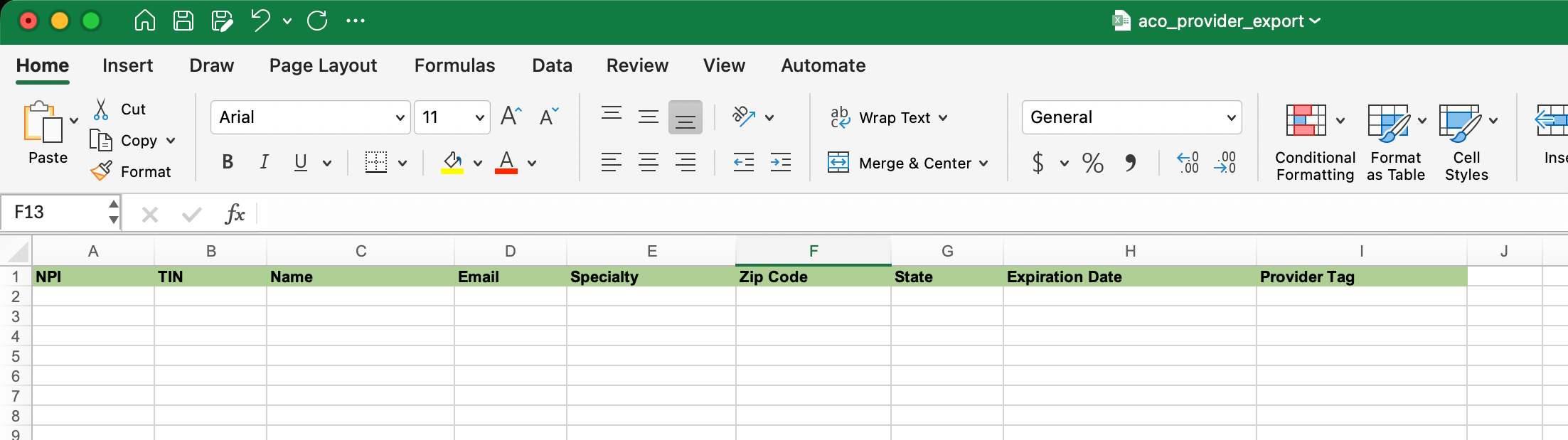
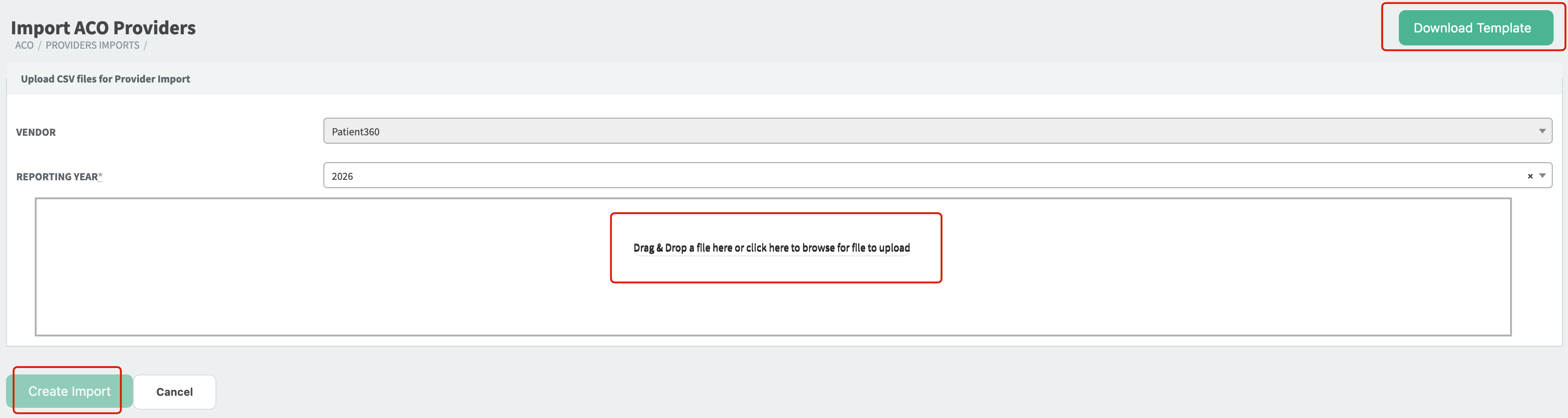
If you have a list of providers to add, click on "export for import". This will download an excel template that you will fill in and upload on the "Import Providers" screen. This is the recommended method for monthly or quarterly provider additions.
Note - You can also download the excel template from the "Import Providers" screen by clicking on "Download Template"

Provider Import History
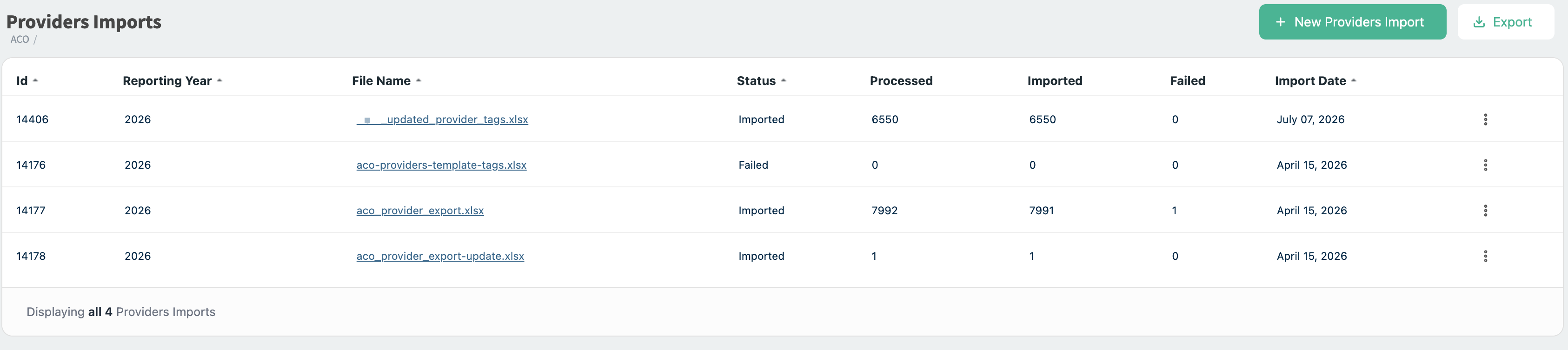
This page shows a history of Provider Imports via excel file. You'll see the file name, status (imported or failed), how many rows were processed, the number of failed rows (if applicable) and the import date. You can also easily get to the Import page by clicking on the "New Providers Import" button.

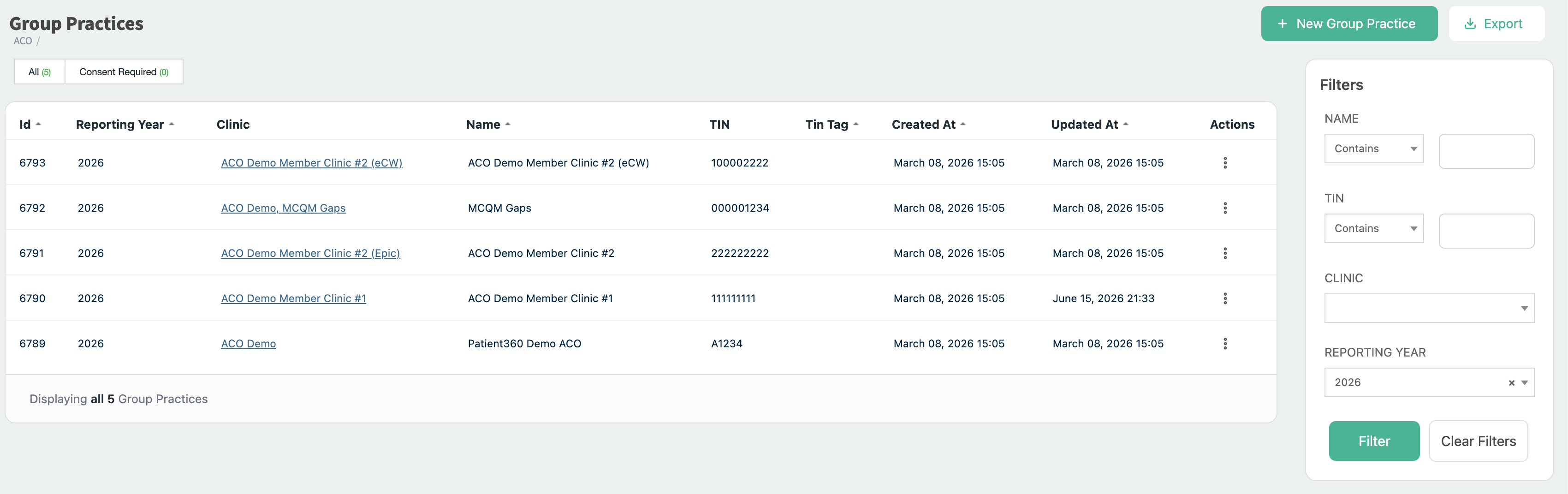
Group practices
Shows a list of all the member clinics and TINs.
Note - this list can be downloaded as a csv using the "Export" button in the top right corner
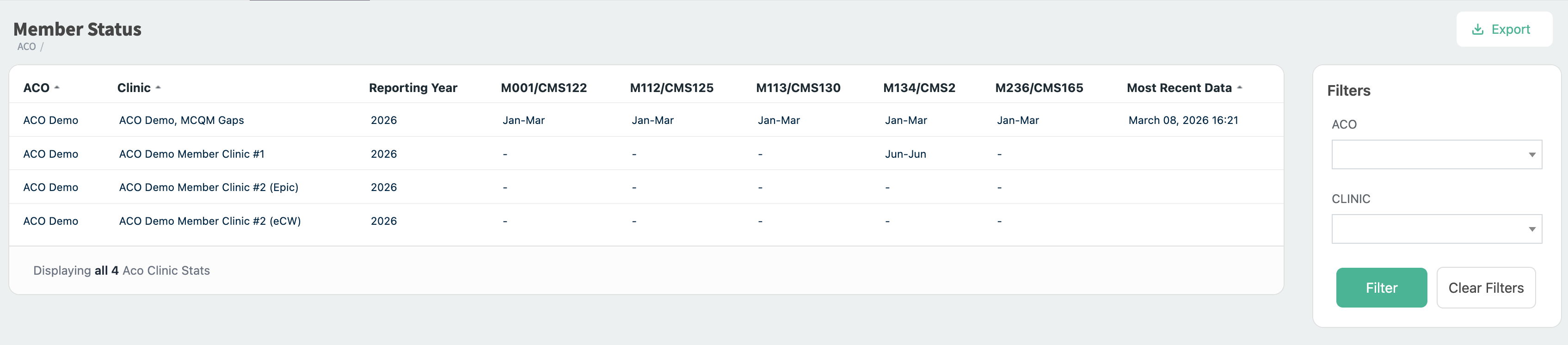
Member Status
Member Status shows each clinic with a column for each measure. From here, you'll see the timeframe that the data covers and the date of the most recent data upload.
Note - this list can be downloaded as a csv using the "Export" button in the top right corner
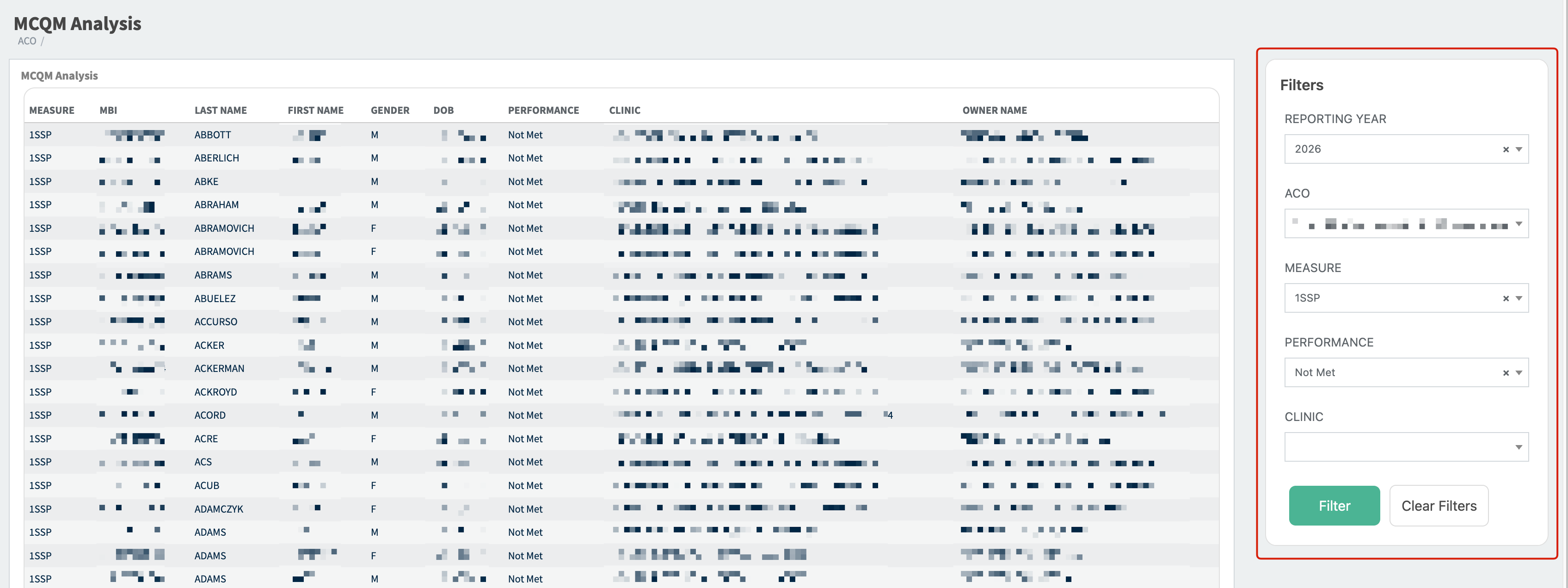
MCQM Analysis
The MCQM Analysis page shows a list of the CMS MCQM Roster patients that the ACO received data for by measure.
You can use the filters feature to choose a specific measures (ex: Measure 236SSP) and you'll get a list of all patients included in this measure, their performance (Met, Not Met, Exclusion/Exception), and you'll see which member clinic the patient came from. In addition to filtering by measure, you can filter by clinic and performance.
This is a useful tool when you're trying to confirm that data from a specific member clinic has rolled up to the ACO.
Import Failures
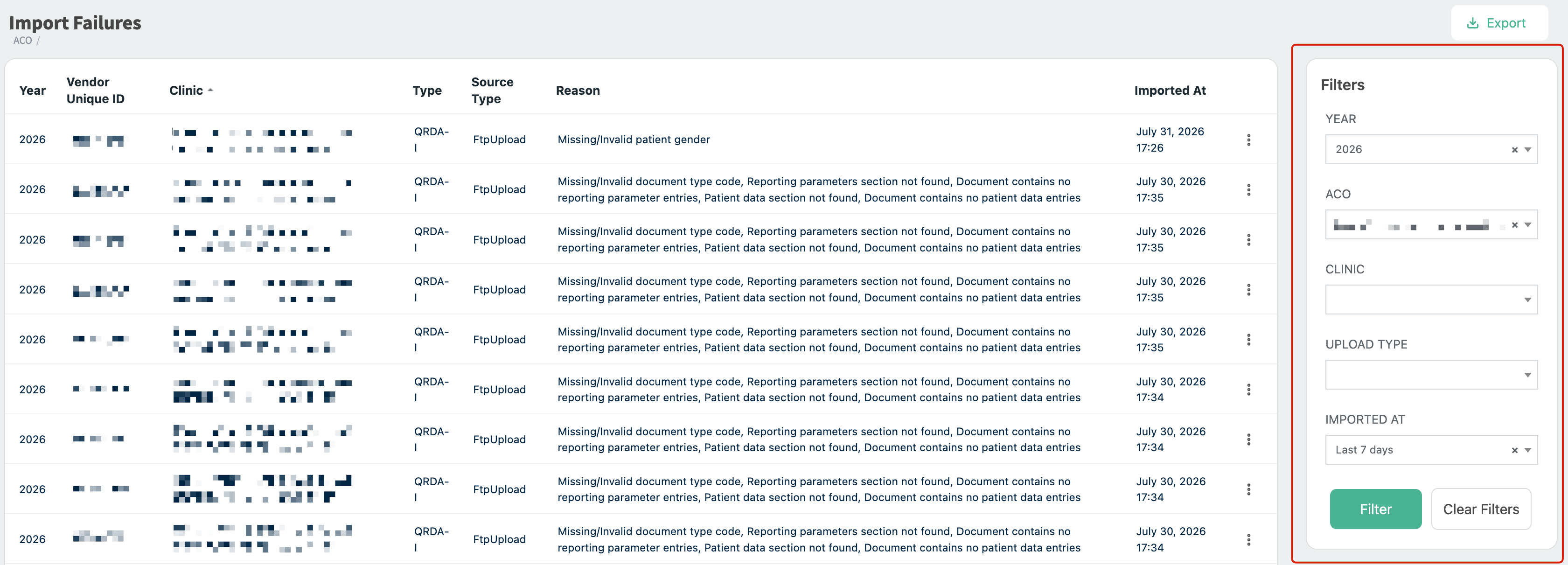
This page will list all import failures for each member clinic. This list will default to failures from the last 7 days, however that can be modified using the filters. The best way to use this page is to filter by Clinic.
Note - this list can be downloaded as a csv using the "Export" button in the top right corner